


The next time you cancel a subscription on iPhone, the app may ask you to stay, and it may offer you a cheaper price to do it. Apple told developers on Nov. 4 that every app with an auto-renewing subscription can now show a “retention message” in the cancellation screen, with text, a picture or a special offer. You can still cancel on the same screen. Here is what you will see and how to make it work in your favor.
The short version
Apple now lets apps show a message or a discount when you go to cancel a subscription. You still decide, and the Cancel Subscription button stays on the same screen.
- Apple announced retention messages for all developers on Nov. 4, 2026.
- An app can show you text, an image or a special offer, such as a discount or a free period, while you cancel.
- Offers only appear if the app sets one up and you are eligible, so you may see nothing at all.
- In Apple’s own example, an offer of $2.99 a month for 3 months, then $4.99, saves $6 before the full price returns.
- The downside: an accepted offer ends and the regular price comes back, so set a reminder for when it does.
How to cancel a subscription on iPhone now
The steps have not changed. Apple’s support page lists them like this:
- Open Settings and tap your name at the top.
- Tap Subscriptions.
- Tap the subscription you want to stop.
- Tap Cancel Subscription.
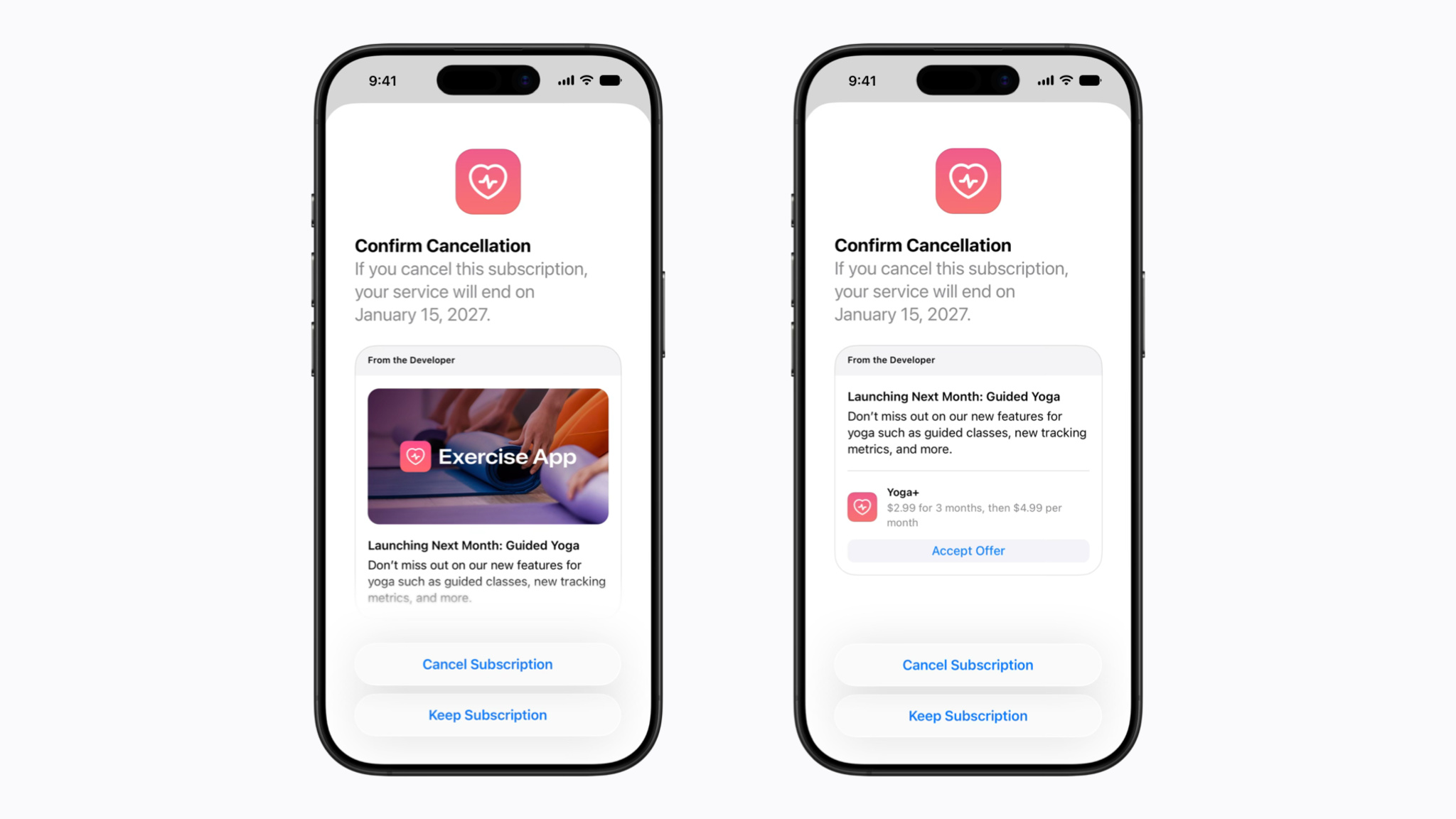
What is new is what can appear after step 4. If the app has set up a retention message, you will see a box marked “From the Developer” above the buttons. Below it are two choices: Cancel Subscription and Keep Subscription. If there is an offer, it has its own Accept Offer button.
What apps can and cannot show you
According to Apple’s developer announcement, “retention messages appear in the cancellation flow and can include text, images, or a special offer.” Apple’s setup guide for developers adds a few rules that matter to you as a customer:
- Each app can create up to 10 retention messages, but each subscription shows only one at a time.
- The offer is a discount or a free period. Only subscribers who qualify see it. Everyone else sees the text, or the text and a picture.
- The message text itself is not allowed to mention prices, discounts or deals like “50% off.” The price only appears inside the offer box.
- Developers can choose who sees a message and how long to wait before showing it again.
The upshot: canceling is still yours to finish, but the cancel screen is now a place where a better price can show up. If you were going to leave over cost, it is worth reading that screen before you tap.
Do the math before you tap Accept Offer
Apple’s sample screen shows an offer of $2.99 a month for 3 months, then $4.99 a month. Here is what that means in real money:
| Regular price | With the offer | |
|---|---|---|
| First 3 months | $14.97 | $8.97 |
| Savings | $6.00 | |
| Month 4 onward | $4.99 a month | $4.99 a month |
So the offer is real money, but it is a short discount, not a new price. If you only stayed because of the deal, put a reminder in your calendar for the week before the offer ends. Apple’s example screen also shows the date your service would end if you cancel, so canceling usually means you keep access until the end of the period you already paid for.
A simple rule for canceling now
- If you want the app gone for good, tap Cancel Subscription and ignore the offer.
- If you would stay at a lower price, read the offer, check what it costs after the deal ends, then decide.
- If you see no offer, that is normal. The app may not have set one up, or you may not qualify.
Still sorting out what you pay for every month? Our guide to setting a tech budget you can stick to has a simple subscription check, and here is how we worked out what cloud gaming costs per hour.


