


Somebody in every family is the one who gets the call: “What’s the Netflix password again?” A password manager for families fixes that, and it fixes the bigger problem behind it, which is the same weak password reused on the bank, the email and the school portal. The hard part is picking one, because the plans look alike until something goes wrong. So we sorted them by the question that matters most when you share with kids or parents: if someone gets locked out, can you get them back in?
The short version
1Password Families is the pick for most households because a family organizer can rescue a member who forgets their password. Bitwarden Families costs the least per person, and Apple and Google both offer free options that work well if everyone uses the same kind of phone.
- 1Password Families costs $71.88 a year at its regular price for five people, about $14.38 per person, and an organizer can recover a locked-out member.
- Bitwarden Families costs $47.88 a year for six people, about $7.98 per person, but it has no organizer recovery, so set up emergency access on day one.
- Proton Pass Family costs $59.88 a year for six people and adds 50GB of storage and hide-my-email addresses.
- Apple Passwords and Google Password Manager are free, but neither lets you rescue a family member who is locked out of their account.
- Prices were checked on the makers’ own sites on Oct. 12, 2026, and some include first-year discounts that go up at renewal.
We haven’t tested these ourselves for this guide. The picks come from each maker’s own pricing and support pages, checked on Oct. 12, 2026, and from the family features each one documents. Nothing here is a paid placement, and none of these links earn TechCity money.
The one feature that matters most in a password manager for families
What changes for you: a password manager puts every login behind one master password. That is great until your 13-year-old or your dad forgets it. With most services, a forgotten master password means the vault is gone for good, because the company can’t see inside it. That is the point of the security, and it is also the risk.
A few family plans get around this with a recovery role. One adult is the organizer, and the organizer can reset a member’s access without ever seeing their passwords. If you share with people who are likely to forget, this one feature is worth more than any extra.
| Plan | Price per year | People | Cost per person | Can an organizer recover a locked-out member? |
|---|---|---|---|---|
| 1Password Families | $71.88 (regular) | 5 | $14.38 | Yes |
| Bitwarden Families | $47.88 | 6 | $7.98 | No, emergency access instead |
| Proton Pass Family | $59.88 | 6 | $9.98 | Not stated by Proton |
| Apple Passwords | Free | Shared groups | $0 | No |
| Google Password Manager | Free | Your Google family group | $0 | No |
Prices are for yearly billing in US dollars, checked Oct. 12, 2026. Cost per person assumes every seat is used.
Best overall: 1Password Families
Best for: families with kids, older parents, or anyone who will forget their master password at some point.
Why we picked it: 1Password lets a family organizer recover a member who forgets their password or their Secret Key, the extra code 1Password uses to protect each account. You get five people, five guest accounts for a babysitter or a visiting relative, and as many shared vaults as you want, so the streaming logins can sit in one vault and the bank logins in another that the kids never see. It works on iPhone, Android, Windows, Mac and the main browsers, and it warns you when a saved password shows up in a known breach.
The downside: it is the priciest of the main picks at $71.88 a year at the regular price, and there is no free tier. New customers were being offered $53.88 for the first year when we checked, so expect the price to rise at renewal. An organizer also can’t recover their own account, so 1Password suggests naming a second organizer.
Skip if: everyone in your house is comfortable keeping track of their own master password and you want the lowest price.
Good to know: there is a 14-day free trial with no card required. Read how the recovery works in 1Password’s family recovery guide before you invite anyone.
Best on a budget: Bitwarden Families

Best for: families who want a full password manager for the least money.
Why we picked it: Bitwarden Families is $47.88 a year for six people. That works out to about $7.98 per person, or roughly the cost of one fancy coffee per person per year. You get unlimited sharing, passkey support and a report that flags weak and reused passwords. Each member can also name a trusted person for emergency access, who can request entry to their vault after a waiting period the member sets.
The downside: there is no organizer recovery on the family plan. Bitwarden offers account recovery only for business customers. If a family member forgets their master password and nobody set up emergency access, that vault can’t be opened. Bitwarden also had a scare in April 2026, when attackers slipped a malicious version of its command-line tool for developers into a public code library for about 90 minutes. Bitwarden says it found no evidence that vault data was accessed, and the problem was limited to that developer package, not the apps most families use.
Skip if: you are buying for someone who is likely to forget their master password and won’t set up emergency access.
Good to know: Bitwarden has a free plan for one person, which is a good way for one adult to try it before moving everyone over. Current prices are on Bitwarden’s pricing page.
Best for privacy extras: Proton Pass Family
Best for: families who are tired of spam and want to keep their real email address off shopping sites.
Why we picked it: Proton Pass Family is $59.88 a year for six people, about $9.98 each, and every member gets the full Pass Plus plan. That includes hide-my-email addresses, which are throwaway forwarding addresses you can give to a store or an app instead of your real one. You also get dark web monitoring, emergency access, vault sharing and 50GB of storage, and one adult manages the plan from an admin panel.
The downside: Proton doesn’t say whether the admin can recover a member who forgets their password, so plan as if they can’t. The $59.88 price is a discount on the regular rate, so check the renewal price before you pay.
Skip if: the person you are setting this up for just wants their passwords to fill in and doesn’t care about email aliases. The extras will only confuse them.
Good to know: Proton Pass has a free plan, and passkeys work on every plan, including the free one.
Best free pick for iPhone families: Apple Passwords
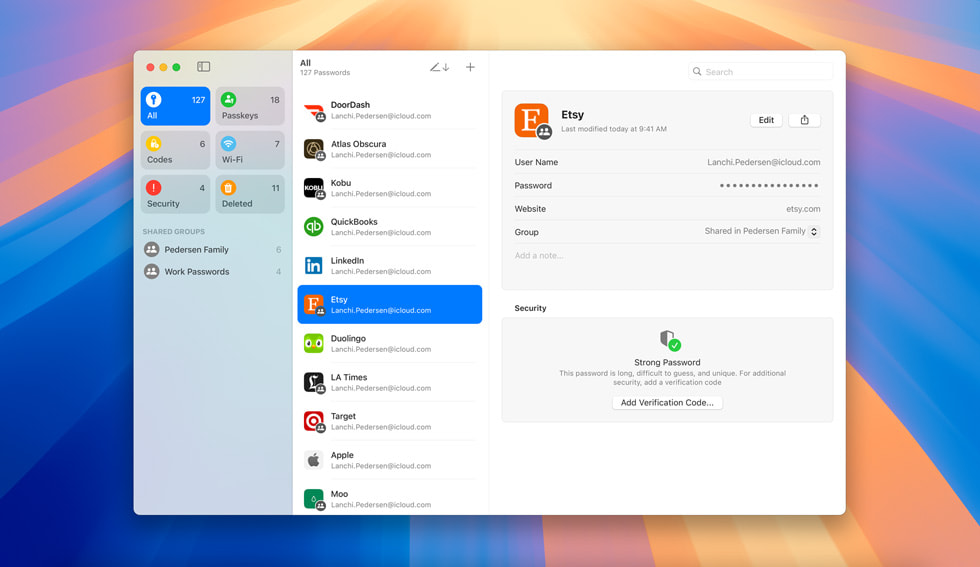
Best for: households where everyone uses an iPhone, iPad or Mac.
Why we picked it: it is already on your phone. The Passwords app came with iOS 18 and macOS Sequoia, and it lets you make shared groups, so the family Wi-Fi, streaming and utility logins can live in one place everyone sees. It saves passkeys and warns you about weak, reused and leaked passwords. On a Windows PC, iCloud Passwords works in Chrome and Edge through the iCloud for Windows app.
The downside: there is no Android app, no organizer recovery and no emergency access. Only the person who made a shared group can manage it.
Skip if: even one person in the family uses an Android phone.
Good to know: you invite people to a shared group from your contacts, not from Family Sharing, and they need iOS 17 or macOS Sonoma or later to see shared passwords.
Best free pick for Android families: Google Password Manager
Best for: families who mostly use Android phones and the Chrome browser.
Why we picked it: it is free, built into Android and Chrome, and you can share a saved password with anyone in your Google family group. It saves passkeys and runs a Password Checkup that tells you when a saved password has been exposed. Kids under 13 with a Google account set up through Family Link fit into the same family group.
The downside: sharing works one password at a time rather than through shared folders, and there is no way to rescue a family member who gets locked out of their Google account. If that account goes, their passwords go with it.
Skip if: your family is split between iPhone and Android and you want one shared place for logins. A paid plan does that job better.
What about Keeper, Dashlane and NordPass?
We also looked at three more family plans. Keeper Family covers five people, each with a private vault, and its dark web alerts, called BreachWatch, are sold as an add-on. Dashlane sells a Friends and Family plan. NordPass Family covers six people, and NordPass also has a free plan for one person that comes with a 30-day Premium trial. We could not confirm current family prices for these three on the makers’ own sites when we checked on Oct. 12, 2026, so they are not in the table. Check the price on each site before you compare.
How to set up a password manager for your family in one evening
- Pick one adult to be the organizer, and if the plan allows it, name a second adult as a backup organizer.
- Have each person choose a master password that is a short sentence they can remember, such as four unrelated words. Write it on paper and keep it somewhere safe at home.
- Turn on emergency access or recovery for every member before you move any passwords in.
- Make one shared folder or group for household logins like Wi-Fi, streaming and utilities. Keep banking and email private to each person.
- Turn on two-step sign-in for each person’s password manager account and their email, using our 10-minute two-factor setup guide.
- Run the built-in password health check and change the reused passwords first, starting with email and banking.
If you are not sure whether your email was already caught in a leak, check it with our data breach guide before you start. And if your accounts support passkeys, switch to passkeys as you go, since there is no password to forget or steal.
How we picked
We compared eight family options: six paid family plans and the free managers from Apple and Google. We read each maker’s pricing, support and security pages on Oct. 12, 2026, and ranked them on three things in this order: whether a locked-out member can be recovered, cost per person per year, and whether the plan works on both iPhone and Android. We haven’t run hands-on tests for this guide. Prices change often and some include first-year discounts, so check the final price before you pay.
Want the full checklist for the rest of your accounts? Our guide to securing every account you own in one afternoon picks up where this one ends.


