



Working from home gives you flexibility, but it also expands the attack surface for cyberthreats. Whether you freelance, run a startup, or work for a global company, protecting your devices, accounts, and data matters. In this guide you'll find practical, prioritized steps anyone can apply right now.
Bold the basics first: top cybersecurity tips for remote workers focus on reducing risk with simple tools and smarter habits. These are the actions that block most common attacks and help you work confidently from anywhere.
Why remote cybersecurity matters
Remote work mixes personal and professional tech, often on the same network. That creates opportunities for credential theft, phishing, ransomware, and data leaks. Here’s the thing, many breaches start with small gaps: weak passwords, outdated software, or an unprotected Wi-Fi network. Fix those gaps first and you eliminate a large portion of everyday risk.
Core principles to follow
Least privilege and segmentation
Limit access to only what you need. Use separate accounts for personal and work tasks when possible. On shared devices, create a dedicated work user profile.
Defense in depth
Layer protections: device security, secure connections, strong authentication, and backup plans. If one layer fails, others still defend you.
Habit over heroics
Simple habits repeated daily are worth more than one-time security setups. Update, verify, and back up regularly.
Top cybersecurity tips for remote workers (actionable checklist)
1. Use a password manager
Stop reusing passwords. A reputable password manager creates and stores long, unique passwords and fills them automatically. That reduces credential theft dramatically.
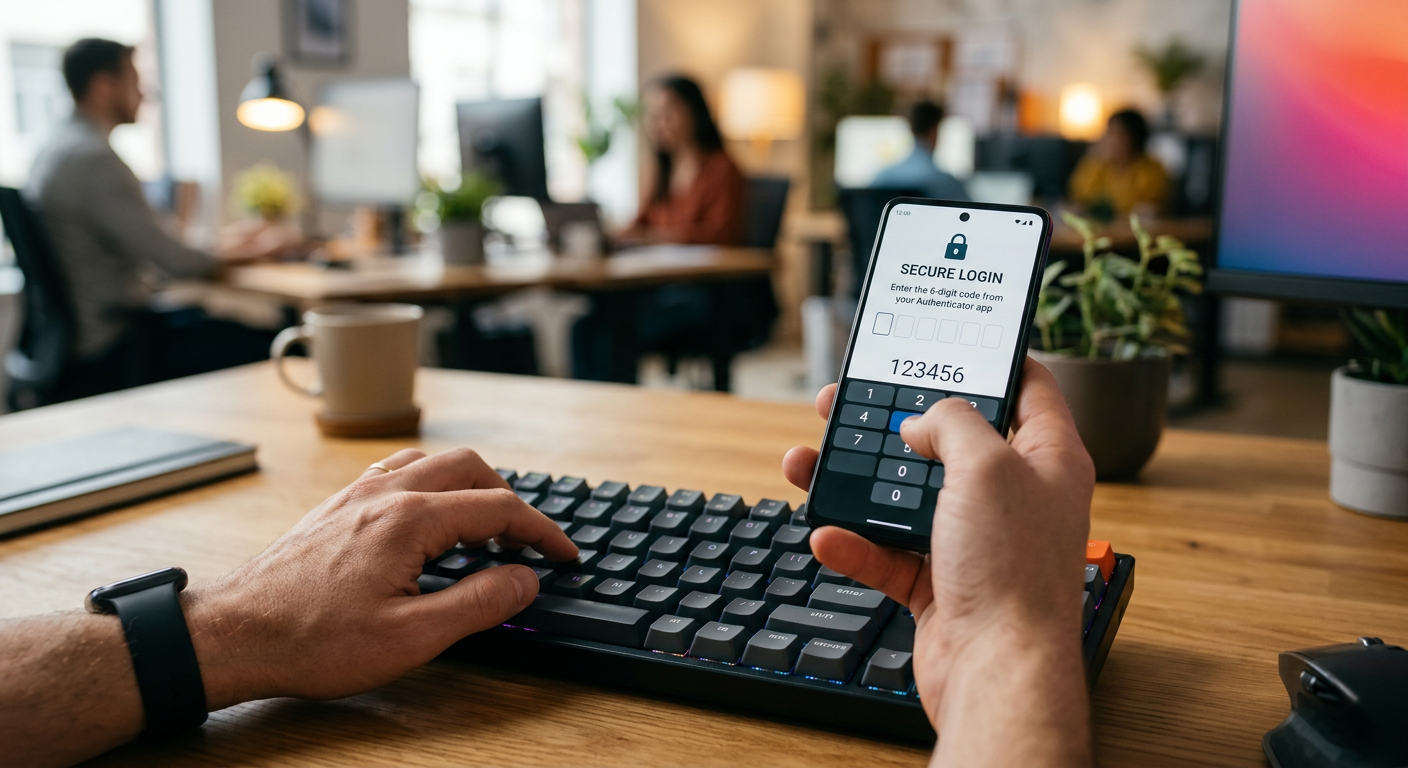
2. Enable multi-factor authentication on every account
Prefer hardware keys or authenticator apps over SMS when available. Multi-factor authentication adds a second layer so stolen passwords alone won’t give attackers access.
3. Keep devices and apps up to date
Install OS and app updates promptly. Patches close security holes attackers exploit. Enable automatic updates for operating systems and key applications.
4. Use a company-approved VPN or secure connection
When accessing company resources over public or home Wi-Fi, use a trusted VPN or secure web connections. Confirm your employer’s guidance on approved VPNs and remote access tools.
5. Secure your home Wi-Fi
Change default router credentials, enable WPA3 or WPA2 encryption, and set a strong Wi-Fi password. Consider a separate guest network for IoT devices.
6. Protect your video calls and meetings
Require meeting passwords, use waiting rooms/lobby features, and only share links with invitees. Lock meetings once everyone has joined to prevent uninvited guests.
7. Be phishing-aware
Think twice before clicking links or opening attachments. Verify unexpected requests by contacting the sender through a separate channel. Look for subtle red flags: mismatched domains, urgency, or unusual file types.
8. Backup important work data regularly
Use encrypted cloud backups or an external drive stored securely. Test restore procedures occasionally so backups are reliable when needed.
9. Use encryption and secure file-sharing
Share sensitive files through encrypted services or company-managed platforms. Avoid sending confidential data over personal email or consumer-grade chat apps.
10. Lock devices and use full-disk encryption
Enable screen lock on idle, require PINs or biometric login, and turn on full-disk encryption to protect data if a device is lost or stolen.
11. Limit third-party app permissions
Audit apps connected to your accounts and remove access for apps you no longer use. Each permission is a potential vector for data exposure.
12. Keep work and personal lives separated
When possible, use dedicated devices for work. If that’s not feasible, isolate work accounts within a separate browser profile or container.
How to prioritize these tips (quick plan)
- Immediate (first 48 hours): Enable multi-factor authentication, install a password manager, update devices, and change router default credentials.
- Short term (1–2 weeks): Set up regular backups, configure VPN access, and audit connected apps.
- Ongoing: Train yourself to spot phishing, review permissions quarterly, and keep software patched.
Common objections and practical answers
You might think strong security slows you down. Start with low-friction wins: password manager autofill, single sign-on where your employer supports it, and an authenticator app. Another objection is cost. Many robust security tools have free tiers suitable for most remote workers.
Privacy and compliance considerations
If you handle regulated data, follow your employer’s compliance rules. Use company-approved storage, and never move regulated documents to personal services without explicit permission. When in doubt, ask your security or compliance team.
Questions to ask your employer
- Is there a recommended VPN or remote access tool?
- Does the company provide a password manager or hardware token?
- What's the official policy for storing or sharing sensitive data offsite?
Next steps (what to implement today)
- Turn on multi-factor authentication for email and collaboration accounts.
- Install and configure a password manager.
- Apply pending updates to laptop and phone.
Frequently asked questions
How strong does my Wi-Fi password need to be?
Use a long passphrase with mixed characters or a random password from a manager. Avoid common words, and change the default SSID and router admin password.
Is a VPN necessary when working from home?
A VPN adds encryption for traffic and reduces exposure on public networks. For home networks with secure Wi-Fi, a VPN is still helpful when accessing company resources.
Can I use SMS for two-factor authentication?
SMS is better than nothing, but authenticator apps or hardware keys provide stronger protection against interception and SIM-based attacks.
What should I do if I suspect an account was hacked?
Change the password immediately using a secure device, enable multi-factor authentication if not already active, and notify your employer or IT/security team.
How often should I back up my work?
Back up frequently based on how much work you can afford to lose. For many remote workers, daily or weekly backups combined with versioning are a practical baseline.
Take action now
Protecting your remote work setup does not require perfect security, it requires consistent steps. Start with the few high-impact actions listed above and build habits around them. For more guides, practical tutorials, and regional tech coverage, visit https://techcityng.com and stay informed.
Conclusion
Remote work is here to stay, and good security is a competitive advantage. By applying the checklist above you reduce the risk of breaches, protect client and company data, and gain peace of mind. Small, consistent steps add up quickly. Make these practices part of your daily routine and you’ll be able to focus on what matters: doing great work, securely.