
Think about what your social media profiles reveal about you. Your full name. Your face. Where you live, where you work, who your friends and family are, what you do on weekends, and sometimes even where you are at this exact moment. Now think about how much of that information is visible to complete strangers.
For most people, the honest answer is: more than it should be.
Social media platforms are designed to be open and social by default. Privacy protections are available but they sit buried in settings menus that most users never open. Meanwhile, a 2025 privacy ranking by cybersecurity researchers at Incogni found that platforms like Facebook and Instagram collect up to 37 out of 38 possible types of user device data, making them among the most data-hungry apps on any phone.
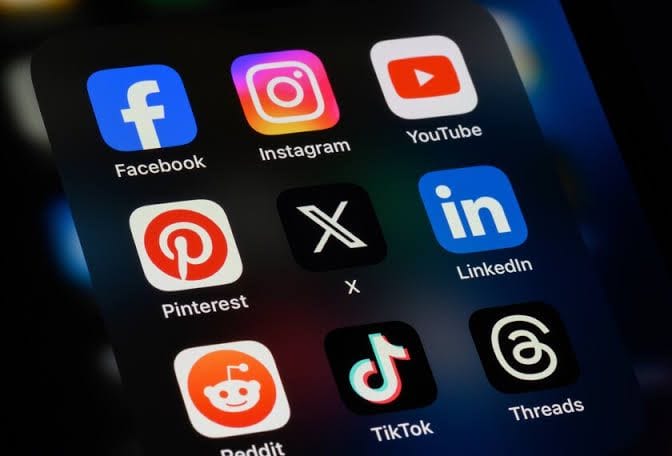
The good news is that a few targeted changes to your settings can significantly reduce your exposure. This guide walks you through the most important privacy settings on the five platforms most Nigerians and Africans use daily: Facebook, Instagram, TikTok, X (formerly Twitter), and LinkedIn. Step by step, no technical knowledge needed.
Why Your Default Settings Are Working Against You
Before the platform-by-platform breakdown, it is worth understanding one fundamental thing. Social media platforms set their default settings to maximise your public visibility. More visibility means more engagement, more data collected, and more advertising revenue for the platform.
That is their business model, and it is not a secret. But it does mean that the moment you create an account and skip through the setup screens, your information is essentially public until you go in and change things yourself.
Reviewing your privacy settings is something you should do at least once every six months. Platforms update their policies and roll out new features regularly, and new options appear in settings menus that were not there before. Building this habit is one of the simplest and most effective things you can do for your online safety.
Facebook: Where to Start and What to Change
Facebook holds more personal data on its users than almost any other platform. Getting the settings right here matters.
Run the Privacy Checkup first. Facebook has a built-in tool specifically for this. Go to Settings and Privacy > Privacy Checkup. It walks you through the most important settings in a guided format, covering who can see your posts, how people can find you, and your data preferences. If you do nothing else on Facebook, do this.
Control who sees your posts. Go to Settings > Privacy > Who can see your future posts and change it from Everyone to Friends. This single change stops your posts from appearing in public search results or being visible to anyone who stumbles across your profile.
Lock down who can find you. Under Settings > Privacy, look for “Who can look you up using your email address or phone number” and set both to Only Me or Friends. This prevents strangers from locating your account using contact information they may have found elsewhere.
Hide your friends list. Go to Settings > Privacy > Who can see your friends list and set it to Only Me. Public friend lists are frequently used in phishing attacks and impersonation scams where someone pretends to be a person you know.
Control tags and mentions. Go to Settings > Profile and Tagging and turn on the option to review posts you are tagged in before they appear on your profile. This keeps unflattering or unwanted tags from going live without your knowledge.
Turn on two-factor authentication. Go to Settings and Privacy > Accounts Center > Password and Security > Two-Factor Authentication. This adds a second verification step when someone tries to log into your account from an unfamiliar device. It is one of the most effective ways to prevent unauthorised account access.
Instagram: Tighten Up Your Profile
Instagram’s privacy controls are straightforward once you know where to look.
Switch to a private account. Go to your profile, tap the three lines in the top right, select Settings and Activity > Account Privacy, and toggle on Private Account. Once this is enabled, only people you approve can follow you and see your content.
Review device permissions. Go to Settings and Activity > Device Permissions. If you are not actively using Instagram’s camera, microphone, or location features, set each of these to Not Allowed. There is no reason for the app to access your microphone or location when you are just scrolling.
Control who can interact with your content. Under Settings and Activity > Comments, you can filter offensive comments automatically and restrict who can comment on your posts and reels. You can also control who can reply to your stories and whether people can share your content.
Manage tags manually. Go to Settings and Activity > Tags and Mentions and turn on manual approval for tags. This means you review and approve any tag before it appears on your profile, giving you full control over what is publicly associated with your name.
Audit connected apps. Go to Settings and Activity > Website Permissions > Apps and Websites. Review the list of third-party apps that have access to your Instagram account. Remove anything you no longer use or do not recognise.
TikTok: The Platform That Collects the Most
TikTok consistently ranks at the bottom of privacy rankings due to the volume of data it collects. Adjusting your settings here is especially important.
Make your account private. Go to your profile, tap the three lines in the top right corner, select Settings and Privacy > Privacy, and toggle on Private Account. This means only approved followers can see your videos and profile.
Control comments, duets, and stitches. Still in the Privacy settings, set Comments, Duet, and Stitch to Friends or turn them off entirely. This prevents strangers from using your content in their own videos or leaving unwanted comments.
Turn off video downloads. Go to Privacy > Downloads and toggle off Allow Download. This stops anyone from saving your videos to their devices and resharing them without your knowledge.
Restrict direct messages. Under Privacy > Direct Messages, set this to Friends only or turn it off entirely. The default setting allows anyone on the platform to message you, which opens the door to spam and unwanted contact.
Review ad and data settings. Go to Settings and Privacy > Privacy > Ads Personalisation and review what data TikTok uses to target ads. You can also go to Privacy > Personalisation and data to see and manage what information is being used.
X (Formerly Twitter): Simple But Often Overlooked
X has fewer privacy options than some other platforms, but the ones available are worth enabling.
Protect your posts. Go to Settings and Privacy > Privacy and Safety > Audience and Tagging and toggle on Protect your Posts. When this is on, only approved followers can see your posts and new followers must request to follow you first.
Control who can tag you. In the same Privacy and Safety section, go to Tagging and restrict who can tag you in photos to People You Follow or No One.
Limit who can reply to your posts. When composing a post, tap the reply icon at the bottom and choose who can respond. Options include Everyone, People you follow, or Only people you mention. This is also adjustable after a post goes live.
Set up login alerts. Go to Settings and Support > Settings and Privacy > Security and Account Access > Security and make sure two-factor authentication is on. You will receive automatic email alerts for all new logins, so any unauthorised access attempt is flagged immediately.
LinkedIn: Your Professional Profile Needs Privacy Too
LinkedIn sits in an interesting position. It is a professional platform where visibility is part of the point, but there are still settings worth adjusting.
Control your public profile visibility. Go to your profile page and click Edit public profile and URL. From here, you can toggle off specific sections like your photo, email address, summary, or work experience from appearing in public search results including Google.
Manage who sees your activity. Go to Settings > Visibility > Visibility of your LinkedIn activity and turn off Share job changes, education changes, and work anniversaries. This stops your entire network from being notified every time you update your profile.
Hide your connections list. Go to Settings > Visibility > Connections and set it to Only You. Your list of professional connections is valuable information and there is no reason for it to be publicly visible.
Review connected apps and services. Go to Settings > Data Privacy > Other Applications > Permitted Services. Remove any third-party apps that have access to your LinkedIn data that you no longer use or no longer need.
Universal Tips That Apply to Every Platform
Regardless of which platform you are on, these habits matter across the board.
Remove your phone number from your public profile unless it is absolutely necessary. If your number has ever been involved in a data breach, leaving it visible makes it easy for bad actors to track you across platforms.
Never connect social media accounts to apps or games you no longer use. These connections persist long after you have forgotten about them and continue to have access to your data.
Use a strong, unique password for each social media account and store them in a reputable password manager. Reusing passwords is one of the most common ways accounts get compromised.
Review all your privacy settings every six months. Platforms change their policies, add new features, and sometimes quietly reset settings after major updates. A periodic check takes ten minutes and can catch changes you never authorised.
Your social media presence does not have to be a privacy liability. The platforms have the settings available. Most people just never use them.
Take 30 minutes today and go through each platform in this guide. Start with Facebook’s Privacy Checkup, switch Instagram to private, lock down TikTok’s video and messaging settings, protect your posts on X, and clean up your LinkedIn visibility. Each of those actions reduces your exposure and puts you back in control of your own information.
Which platform do you feel most exposed on right now? And are there any privacy tips that have worked well for you that we did not cover here? Drop them in the comments below. We would love to hear from the TechCityNG community!


