
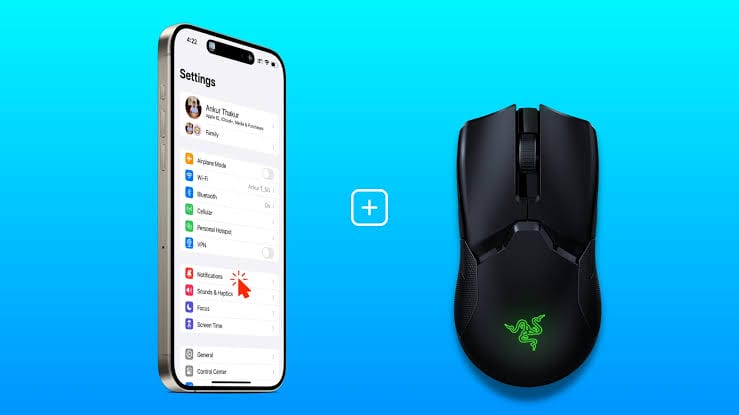
Have you ever been stuck without a mouse while working on your laptop? Luckily, you don’t always need a physical mouse. With the right apps, you can turn your smartphone into a wireless mouse that connects to your laptop via Wi-Fi or Bluetooth. It’s simple, convenient, and can save you in moments when your regular mouse isn’t available.
In this guide, we’ll walk you through how to set up your phone as a wireless mouse for your laptop.
Why Use Your Phone as a Wireless Mouse?
There are several reasons why this trick can be useful:
- You don’t need to buy or carry an extra mouse.
- Perfect backup when your mouse stops working.
- Works well during presentations—you can control your laptop from a distance.
- Useful for casual browsing when your laptop is connected to a TV.
Step 1: Install a Remote Mouse App
To get started, you’ll need an app that turns your phone into a mouse. Some popular options include:
- Remote Mouse (iOS & Android)
- Unified Remote (iOS & Android)
- WiFi Mouse (iOS & Android)
Download and install one of these apps on your phone. You’ll also need to install the companion software on your laptop from the app’s official website.
Step 2: Connect Your Phone and Laptop
- Make sure both your laptop and phone are connected to the same Wi-Fi network (or via Bluetooth, if supported).
- Open the app on your phone and the companion software on your laptop.
- The app should automatically detect your laptop. Tap to connect.
Step 3: Use Your Phone as a Mouse
Once connected, your phone screen will display a touchpad. You can:
- Swipe on your phone screen to move the cursor.
- Tap to click.
- Use two fingers to scroll.
- Some apps even let you use your phone’s keyboard for typing on your laptop.
Bonus: Advanced Features
Depending on the app, you can also:
- Control media playback.
- Use your phone as a presentation remote.
- Access shortcuts and custom controls.
Turning your phone into a wireless mouse is quick, easy, and surprisingly handy. Whether your mouse just died, you forgot it at home, or you simply want more flexibility during presentations, your smartphone can step in as the perfect alternative.